General Guide
Users can click the IDS4Revit button in the IDS4Revit tab to open the main window, which provides access to the main functions via two tabs:
- Pre-validation tab: Allows users to pre-validate IDS compliance against the Revit model, find elements based on the IDS file, and export to IFC based on the IDS4Revit configuration.
- Map Properties tab: Helps users map the data origin to the required IDS data.
General workflow
- Users select the IDS file and IFC Setup.
- Users review the mapped categories.
- Users map and create parameters in Map Properties.
- Users run Pre-validation.
- Users export to IFC.
Table of contents
Run Pre-validation
Supported IDS facets
The tool evaluates the following IDS facets during pre-validation, and uses the same facets when exporting to IFC:
- Entity
- Property
- Attribute
- Material
- Classification
PartOf is not supported. A specification or requirement that uses PartOf shows Not supported in the Status column after pre-validation.
Selecting the IDS file
In the main window, users can select the IDS file. The tool supports IDS versions 1.0 and above. If the selected file does not conform to the correct IDS schema definition, the tool shows an error message and does not load the IDS file.

Note: the version on the image may not reflect the latest version of IDS4Revit.
Review Mapped Categories
After loading the IDS file, the tool displays on the Pre-validation tab the IFC entities required for each IDS specification. The Mapped Categories column shows the associated objects based on the selected IFC Export setup mapping settings. Users who need to change mapped categories can update category mapping in Revit’s IFC export setup settings.
The tool uses these mapped Revit objects, together with entity mapping and the supported facet filters, as the scope of elements for each specification, either from the entire model or the active view based on user input.
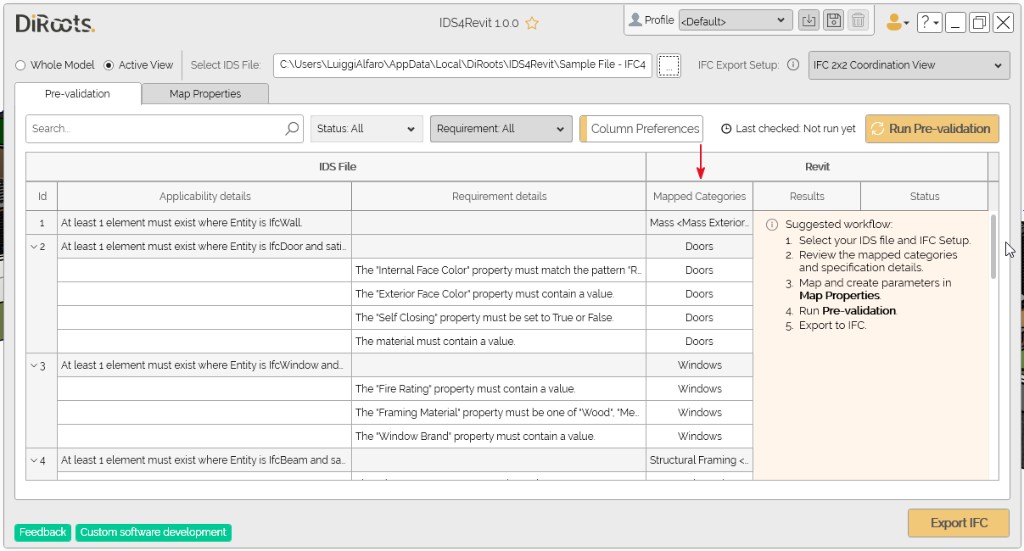
Note: the version on the image may not reflect the latest version of IDS4Revit.
Mapping the properties
On the Map Properties tab, users can map user-defined properties and predefined IfcProperties from the IDS file to Revit parameters.
- Mapping Custom Properties: Users can associate Revit parameters with the selected IDS properties, allowing seamless data mapping.
- Mapping Predefined IFC Properties: The tool displays predefined IfcProperties from the IFC schema with the ‘Pset_’ suffix. By default, the tool maps these IfcProperties to a property and shows them in the UI as ‘< Default> - PropName’. Users can modify them manually.
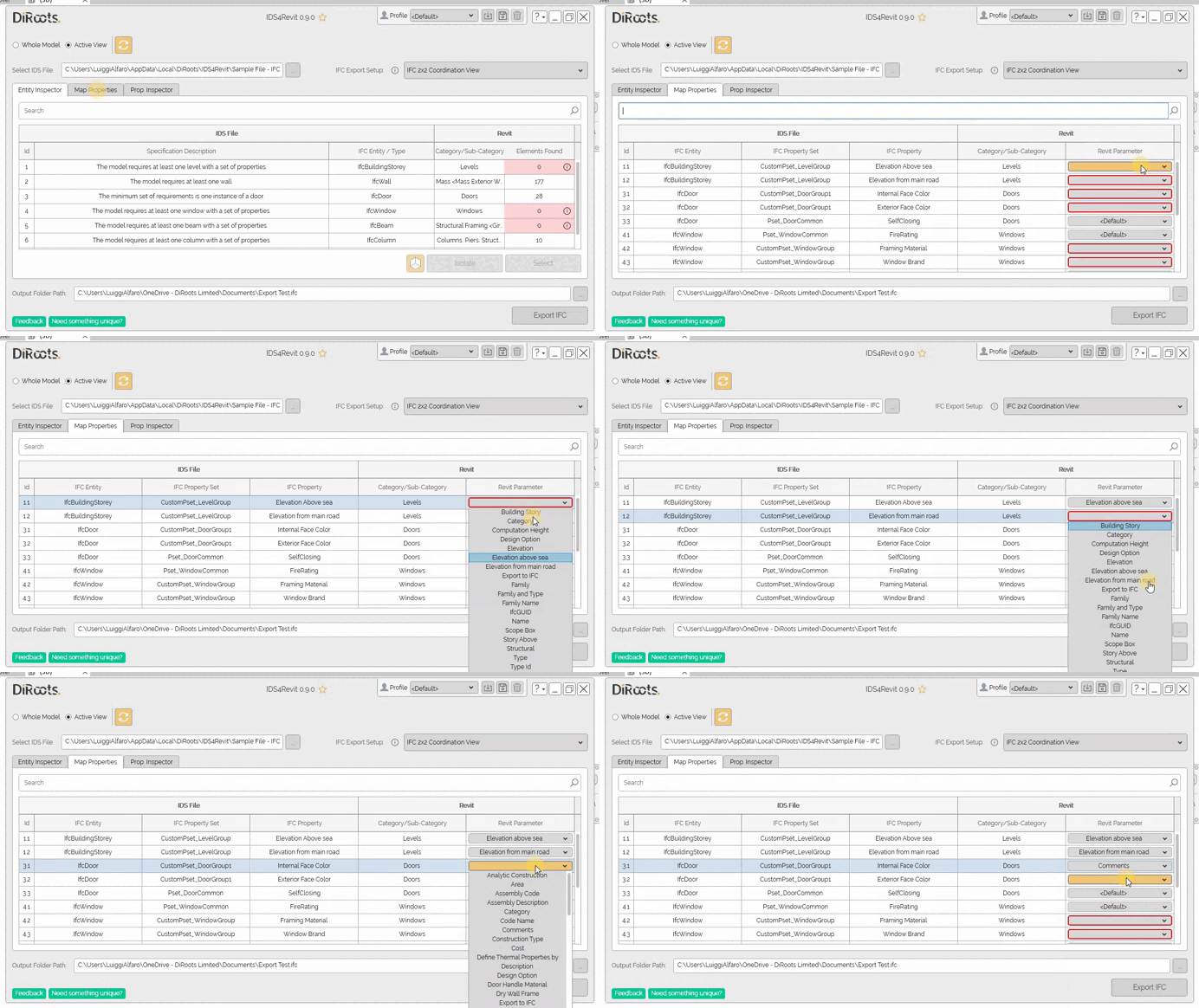
Note: the version on the image may not reflect the latest version of IDS4Revit.
Users can click Refresh Parameters to reload the parameter list when they want to get the latest parameters from the project. Import Mapping is available from Revit 2027 onward and lets users import Revit property mapping into IDS4Revit.
Creating Revit Parameters from IDS Properties
The tool allows users to create Revit parameters from property definitions in the IDS file. With just a few clicks, users can generate the necessary parameters without configuring them manually. Users can customize the scope of the created parameters by selecting additional categories, modifying parameter names, or assigning them to specific Revit parameter groups. After creation, the tool maps the parameters automatically and makes them available for export.
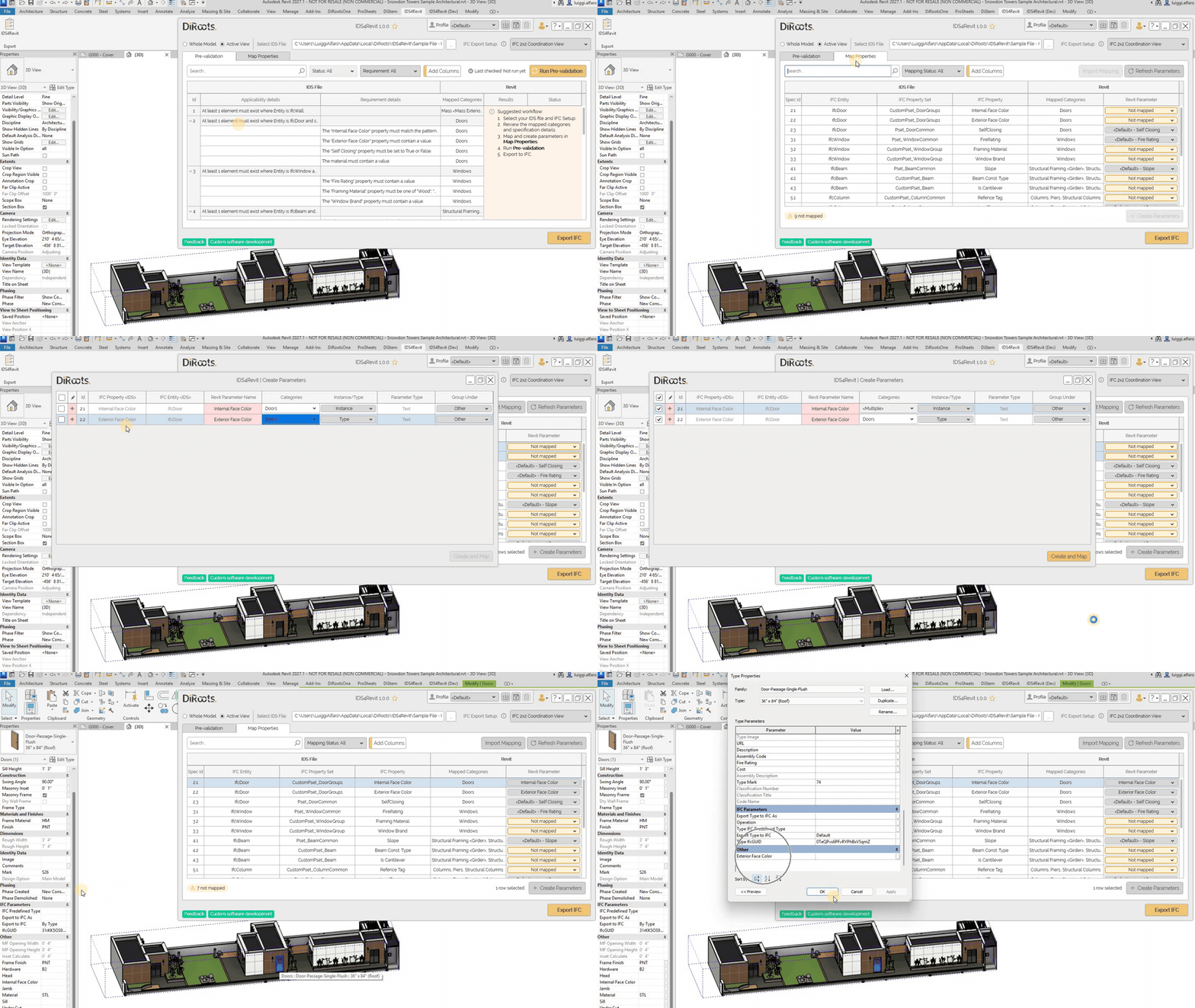 Note: the version on the image may not reflect the latest version of IDS4Revit.
Running Pre-validation
After properties are mapped, the tool displays restrictions on the Pre-validation tab based on the IDS specifications. Users can check IDS compliance against the Revit model with Run Pre-validation.
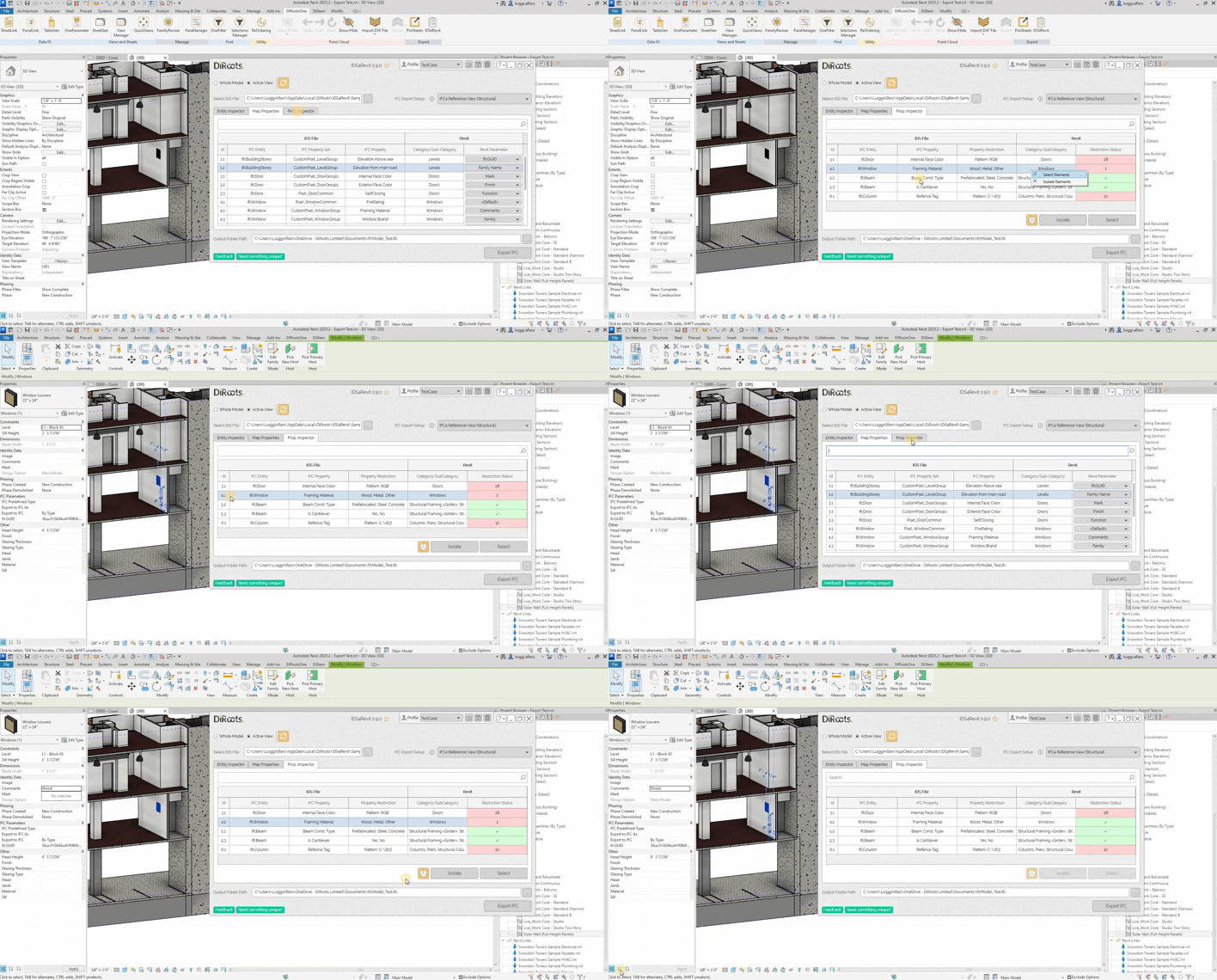
Note: the version on the image may not reflect the latest version of IDS4Revit.
If the property restriction does not comply with the scope of elements, the tool displays a red background on the restriction status column.
Inspecting pre-validation results
After pre-validation, users can review each specification and requirement in the Status and Result columns.
Status summarizes compliance for the row:
- Pass: the specification or requirement is satisfied for the current scope.
- Fail: at least one check in scope did not meet the IDS restriction.
- Not mapped: required data is not mapped to a Revit parameter (or mapping is incomplete).
- Not supported: the row uses the PartOf facet, which the tool does not evaluate.
Result shows the element scope for that row and how many elements passed or failed, for example 23 passed - 141 failed.
Inspect elements in Revit
Users can inspect elements in scope for a specification or requirement in two ways:
- Result column: From the Result column, users can click
23 passedor141 failedto select in Revit all elements in that group (every passing or every failing element for that row). - Context menu: Users can right-click the specification or requirement row and choose:
- Select Passing Elements: Users can select all passing elements for that row.
- Select Failing Elements: Users can select all failing elements for that row.
- Isolate Elements: Users can isolate all elements related to that row in the active view.
- Create Section Box: Users can create a section box around those elements.
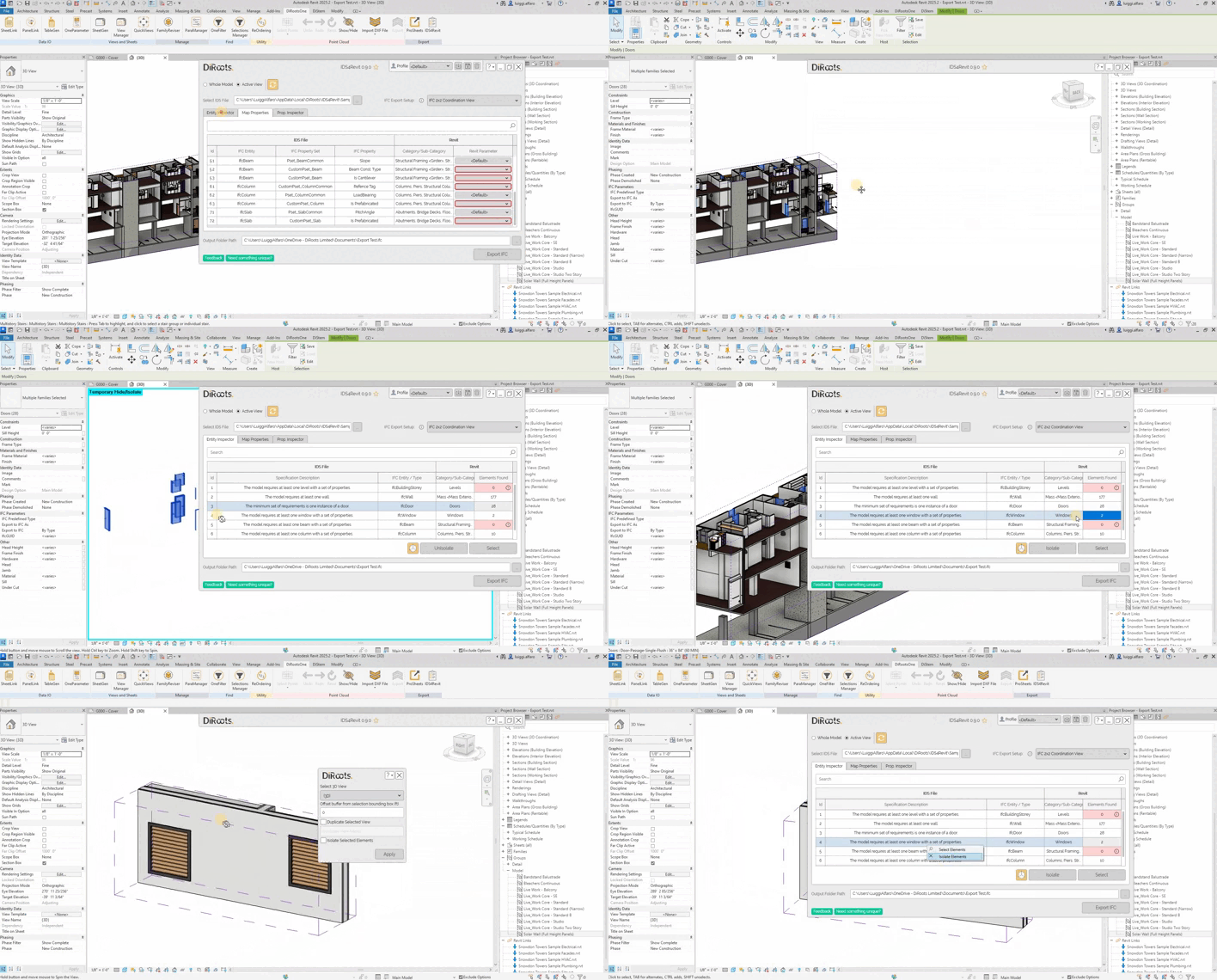
Note: the version on the image may not reflect the latest version of IDS4Revit.
If an IDS requirement defines a required number of elements for the exported IFC file and the scope does not meet it, the tool highlights the cell (for example with a red background) and shows a message when export criteria are not met.
Export to IFC
Exporting to IFC (IDS-based IFC exporter)
buildingSmart defines Information Delivery Specification (IDS) as a standard for stating BIM information requirements in a way that software can read and check. IDS is not limited to IFC in principle, but its applicability and requirements are structured for the IFC schema, which is why openBIM checking and delivery usually target IFC models. The tool helps users export from Revit to IFC according to the loaded IDS file, using the facets listed in Supported IDS facets. The tool does not guarantee full compliance with every IDS requirement, because export uses Revit’s standard IFC exporter.
IFC Export setup Behaviour
The tool allows users to select the IFC export setup based on their requirements. Users can use an existing IFC export setup as a base; the tool applies any additional configurations on top of that setup.
Exportation process
After setting up configurations and additional parameters, users can export either the active view or the entire model based on their selection. The tool uses Revit’s standard IFC exporter for the export process.
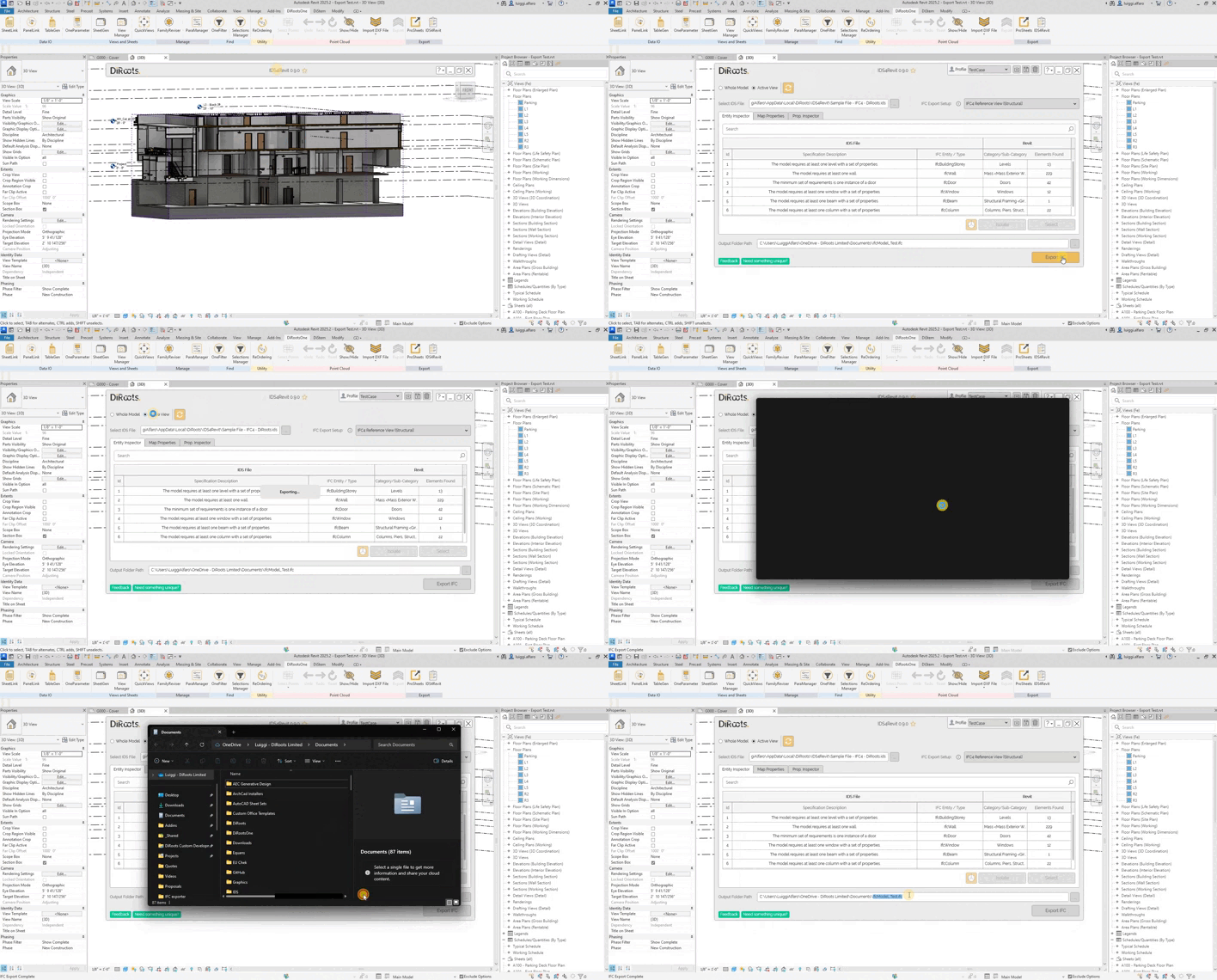
Note: the version on the image may not reflect the latest version of IDS4Revit.
Working with IDS tables
Human-readable specifications
IDS content is easier to read in the Pre-validation table without opening the IDS file. Users can view human-readable text in the Specification Details panel or in optional table columns.
Specification Details panel
Users can open the panel on the right side of the window to see a plain-language description of the selected specification.
- Context menu: Users can right-click a specification row on the Pre-validation tab and choose Open Spec. Details.
- Row actions (after pre-validation): Users can hover a specification row and click the three dots button to open the same panel.
Applicability Details and Requirement Details columns
The tool can show human-readable text for applicability and requirements in these columns (per row). They are not shown by default. Users can add them with Column Preferences (see Column preferences below).
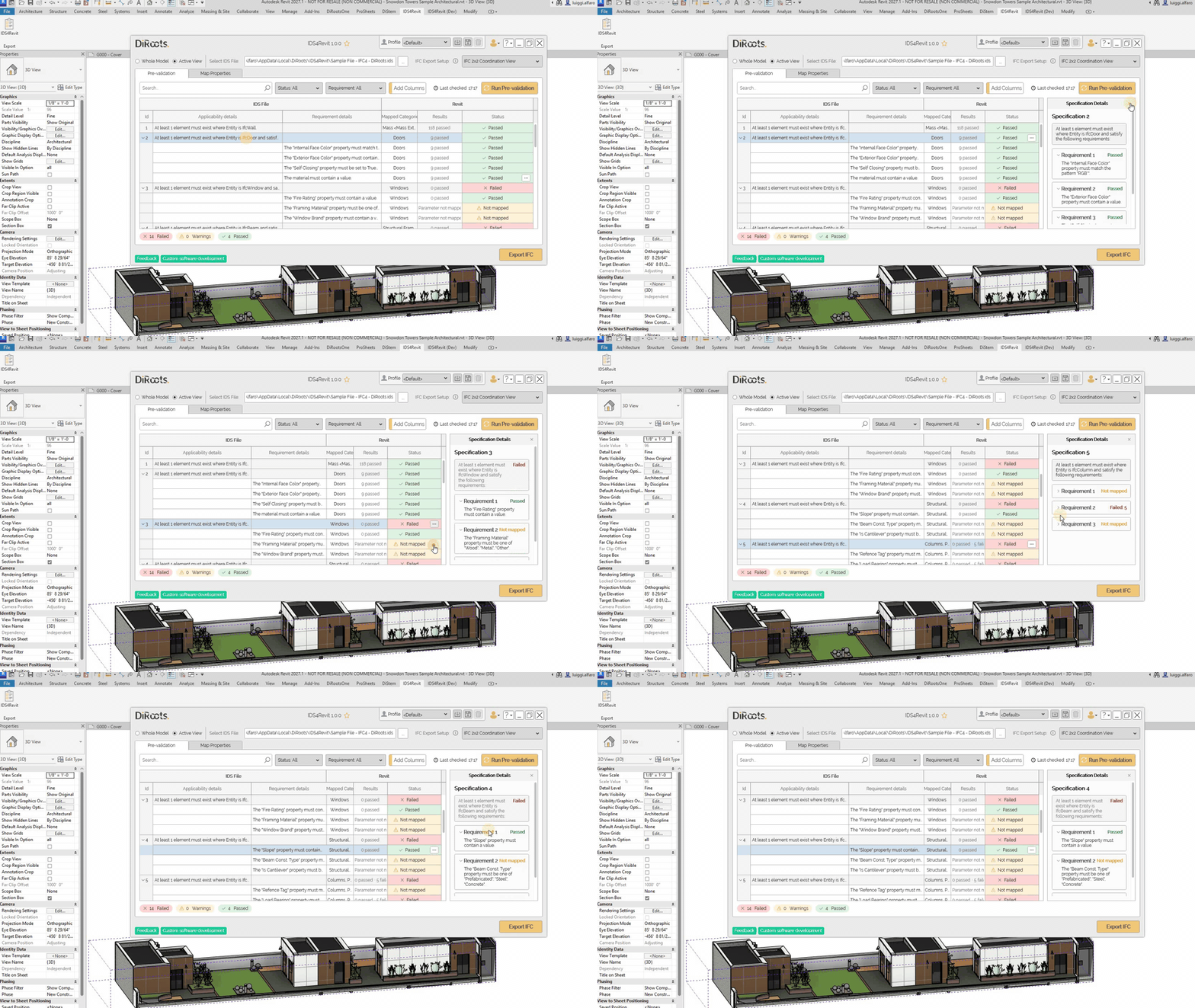
Note: the version on the image may not reflect the latest version of IDS4Revit.
Table filters
The tool provides filter controls above each table to reduce how many rows are shown. Available filters depend on the tab.
Pre-validation tab
- Status: Users can filter rows by the Status column (for example, Pass, Fail, Not mapped, or Not supported). This is useful after pre-validation to focus on issues.
- Requirement: Users can filter by requirement facet type.
- Search description: Users can search the text shown in the table columns (including any columns added with Column Preferences).
Map Properties tab
- Mapping status: Users can show only rows that need attention, such as not mapped parameters or default mappings.
- Search description: Users can search the text shown in the displayed table columns.
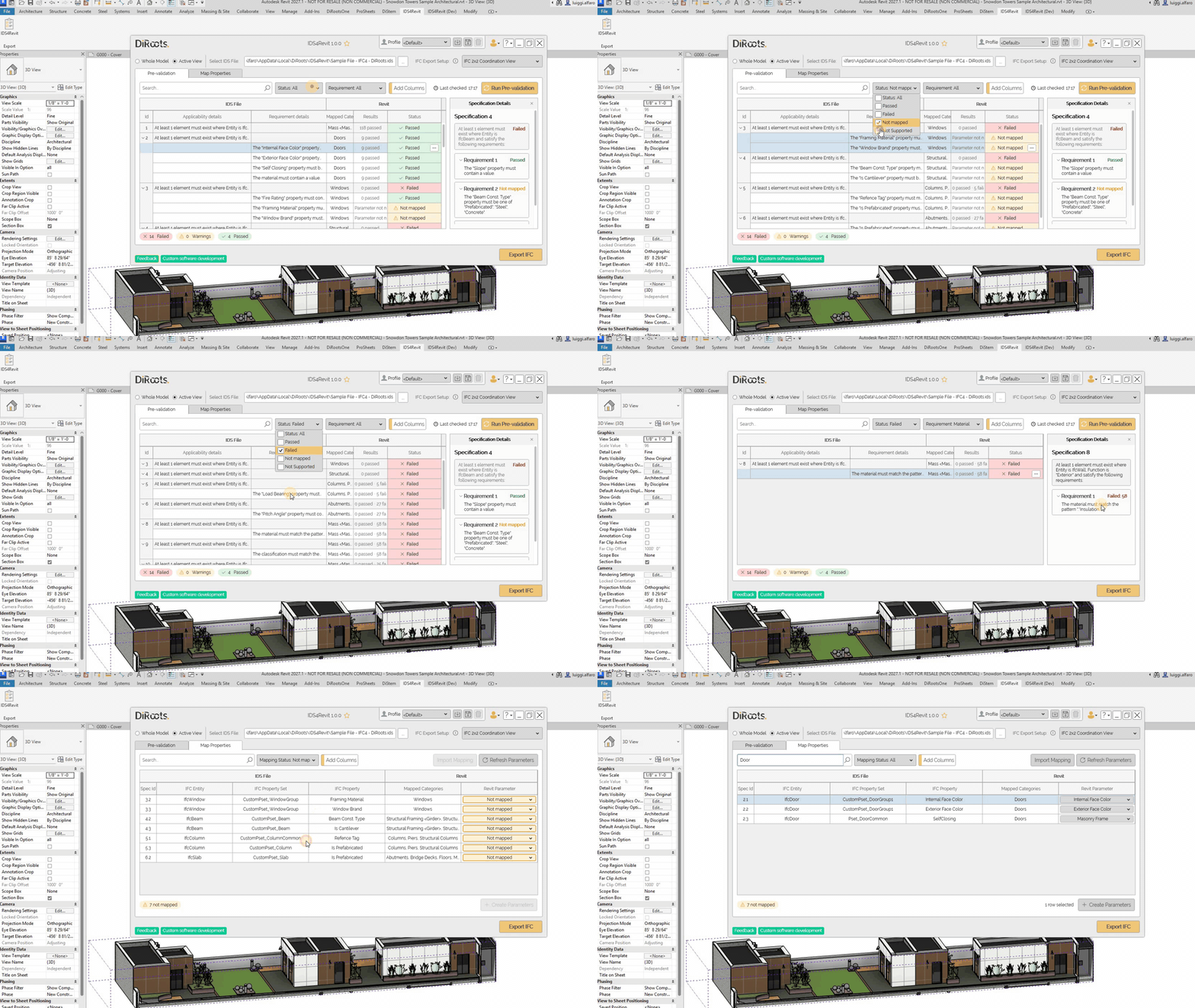
Note: the version on the image may not reflect the latest version of IDS4Revit.
Expand and collapse requirements
In the Pre-validation table, users can show or hide individual requirements for each specification row to focus on specification-level information or drill into details as needed.
Chevron in the ID column: Users can click the chevron next to a specification’s ID to expand or collapse that specification only, toggling visibility of its requirement rows without affecting other specifications.
Context menu (single or multiple specifications): Users can right-click one or more specification rows and use Expand requirements or Collapse requirements to show or hide requirements for every selected specification at once. This is useful when users want to tidy a large IDS file or open several specifications for comparison.
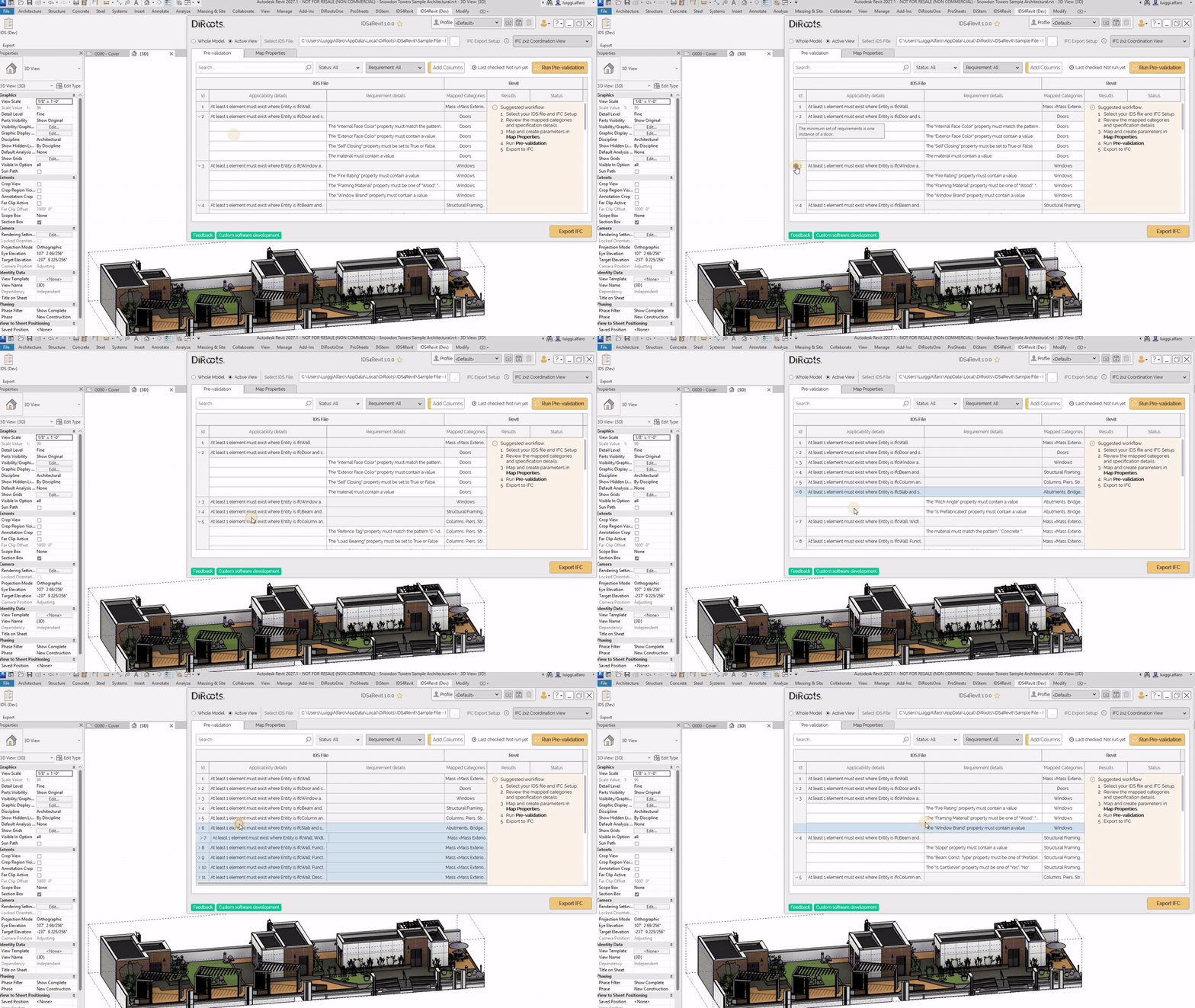
Note: the version on the image may not reflect the latest version of IDS4Revit.
Column preferences
Users can open Column Preferences on the tab toolbar to add columns from the IDS file. Besides guidance or comments, users can enable Applicability Details and Requirement Details for human-readable text in the table (see Human-readable specifications).
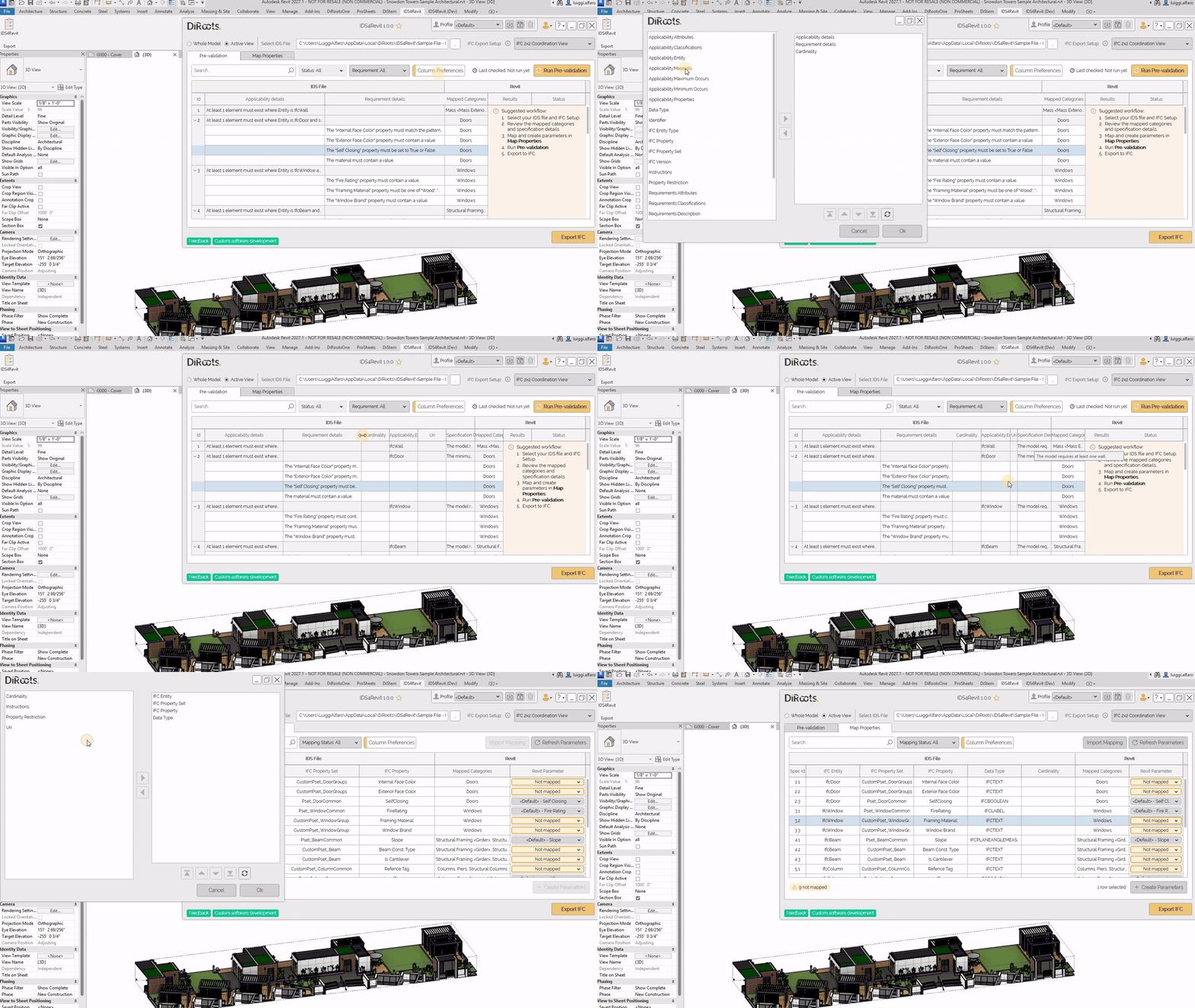
Note: the version on the image may not reflect the latest version of IDS4Revit.
Sample Cases
DiRoots provides sample IDS files that support IFC versions IFC 2x3, IFC 4, and IFC 4x3 ADD2. If no IDS file is loaded, users can select a sample file from the interface. These samples can be used for reference to better understand how the tool works.
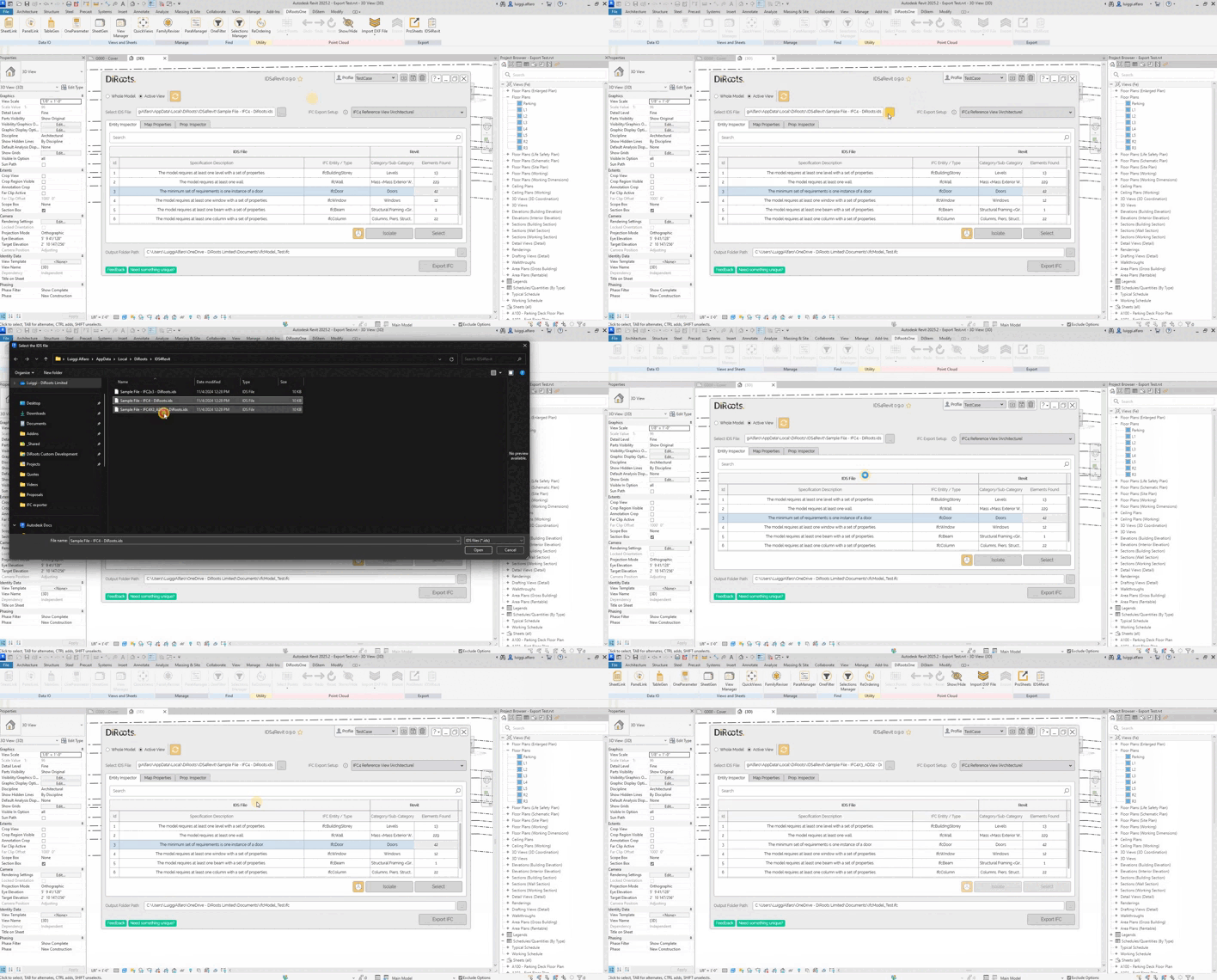
Note: the version on the image may not reflect the latest version of IDS4Revit.
Users can find more IDS4Revit tutorials on the DiRoots YouTube channel, including videos that answer common questions and explain how to use the tool. Subscribe to stay up to date with news and tips.